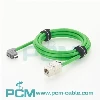
Using a USB cable camera is a straightforward process that involves connecting the camera to a computer or other compatible device using a USB cable. Here's a detailed guide on how to use a USB cable camera:
Camera Compatibility:
Before getting started, ensure that your camera is compatible with a USB cable connection. Most modern digital cameras support USB connectivity, but it's always a good idea to check the camera's manual or specifications to confirm.
USB Cable Selection:
Depending on the camera model, it may require a specific type of USB cable. Common options include USB Type-A to USB Type-B, USB Type-C to USB Type-B, or USB Type-C to USB Type-C. Refer to the camera's manual or specifications to determine the appropriate cable.
Connecting the Camera:
Once you have the correct USB cable, follow these steps to connect the camera:
a. Turn off the camera and the computer/device you'll be connecting it to.
b. Locate the USB port on the camera. It's usually labeled as "USB" or indicated by a USB symbol.
c. Plug one end of the USB cable into the camera's USB port.
d. Locate an available USB port on your computer/device.
e. Plug the other end of the USB cable into the USB port on your computer/device.
Powering On the Camera:
After connecting the USB cable, you'll need to power on the camera. This may vary depending on the camera model, but typically you'll find a power button or switch on the camera body. Refer to the camera's manual for specific instructions on how to turn it on.
Camera Mode Selection:
Once the camera is powered on, you may need to select the appropriate mode for USB connectivity. Many cameras have a dedicated mode or menu option for USB connection. Check the camera's manual to determine how to access this mode and select it.
Computer/Device Recognition:
When you've completed the camera's mode selection, your computer/device should recognize the camera as a connected device. It may take a few moments for the recognition process to complete. The operating system should install any necessary drivers or software automatically. If prompted, follow the on-screen instructions to complete the installation.
Accessing the Camera:
Once the camera is recognized by your computer/device, you can access its contents and control it using compatible software. This can include:
a. Importing/Transferring Photos: You can use software like Adobe Lightroom, Apple Photos, or the default file explorer/manager on your computer to transfer photos from the camera to your computer. Open the software and look for an import or transfer option. You should be able to select the camera as the source and choose the photos you want to import.
b. Remote Control: Some cameras offer the ability to control settings and capture images remotely using dedicated software. This allows you to adjust settings, compose shots, and trigger the shutter from your computer. Check the camera's manual or manufacturer's website for details on compatible remote control software.
Disconnecting the Camera:
When you're finished using the camera, it's important to disconnect it properly to avoid potential data loss or damage. Follow these steps:
a. Close any software or applications that are accessing the camera.
b. Eject the camera from your computer/device. On Windows, you can do this by right-clicking the camera icon in the file explorer and selecting "Eject." On macOS, you can drag the camera icon from the desktop or sidebar to the trash bin.
c. Once the camera is safely ejected, you can unplug the USB cable from both the camera and your computer/device.
Remember to consult the camera's manual for any specific instructions or additional features related to USB connectivity.