



USB Serial Cable
Why Choose Us?
Connect with Confidence: Your Premier Supplier of USB Serial Cables
Advanced Testing
Utilizing state-of-the-art equipment, we rigorously test product quality and reliability to meet industry standards and exceed customer expectations.
Technical Support and Customization
Premier Cable offers personalized support and tailored solutions for individual needs, ensuring optimal performance and compatibility.
Innovation
We continuously innovate to address evolving connectivity needs, introducing cutting-edge products that incorporate the latest industry advancements.
Wide Applications
Our USB serial adapter caters to diverse industries, including industrial automation and computer peripherals. From connecting barcode scanners to CNC machines, our cables offer versatile solutions for various applications.
USB Serial Cables, Also Known As USB To Serial Adapters, Are A Type Of Protocol Converter That Facilitates Communication Between Devices With USB Ports And Those With Serial Ports. It Converts USB Data Signals To And From Various Serial Communication Standards, Such As RS-232, RS-485, RS-422, Or TTL-Level UART Serial Data. This Allows Devices Without Native USB Compatibility To Communicate With Modern Computers Or Other USB-Equipped Devices. USB Serial Cables Are Commonly Used In Industrial Automation, Modems, Printers, Barcode Scanners, Industrial Equipment, And Other Industries Where Legacy Serial Devices Need To Interface With Modern Technology.


What Are the features of uSB serial cables?
Cost-Effectiveness
USB to serial cable is generally less expensive, providing an affordable solution to users' communication needs without having to purchase more expensive equipment.
Flexibility
The USB to serial converter supports multiple serial port standards, such as RS-232, RS-485, RS-422 or TTL-level UART serial port data, making it suitable for various devices and application scenarios.
Broad compatibility
Serial to USB adapter is compatible with a variety of devices and operating systems, including Windows, macOS, and Linux, making them ideal for connecting different devices.
Easy to install and use
Installing a USB to serial interface cable is usually very simple, just plug into the USB port, and the serial port cable retains the COM port, allowing users to easily identify and configure the serial port settings in the device manager, improving user convenience.
Multi-port configuration options
Serial to USB adapter is compatible with a variety of devices and operating systems, including Windows, macOS, and Linux, making them ideal for connecting different devices.
USB Powered
FTDI USB serial cable usually provides power through the USB port, eliminating the need for additional power sockets or batteries, making it easy to use in a variety of environments while reducing the complexity and cost of the device.
Types of USB serial cable
USB serial cables can be divided into different types based on signal type and interface type.
Signal Type
According to the signal type
- USB to RS-232 Cable
- USB to RS-485 Cable
- USB to RS-422 Cable
- USB to TTL Cable: commonly used in microcontrollers and embedded systems.
- USB to UART Cable: Enables communication between USB-equipped devices and UART serial protocol devices.

computer interface
According to the interface type of the computer device
- USB A to serial cable
- Micro USB serial cable
- Mini USB serial cable
- USB C serial cable

Serial Port Interface
According to the interface type of the serial device
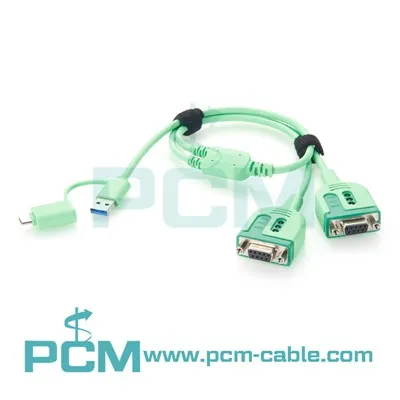
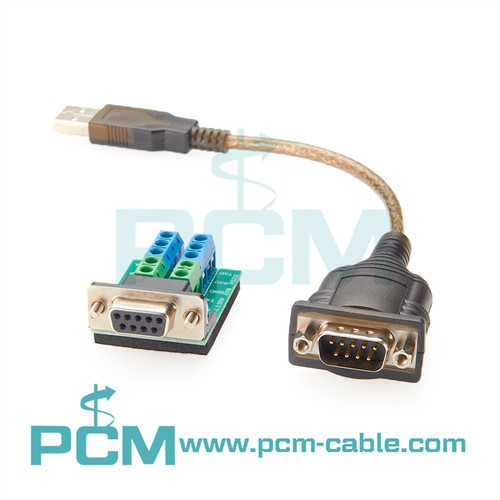
- USB to DB9, DB25, and DB15 serial cables: Convert USB signals to DB9, DB25, or DB15 serial signals respectively, ideal for connecting devices with corresponding ports.
- USB to terminal block serial cables: Enable direct connection between the terminal block and serial device, commonly used in industrial control and automation. This flexible method allows users to connect specific pins as needed for custom applications.
- USB to M8/M12/M16/M23 serial cables: Convert USB signals to serial signals with various M8, M12, M16, or M23 connectors, suitable for industrial equipment and sensor applications.

Application of USB serial cables

Industrial Automation and Control
- Industrial USB serial cable can be used to connect industrial controllers (such as PLC, HMI) and equipment (such as sensors, actuators) for data communication to realize production line automation and intelligence.
- Compatible with almost all PLC brands (such as AllenBradley, Siemens, Modicon, Servos, Indramat, etc.), achieving seamless integration and communication with equipment from different manufacturers.
- It is suitable for various industrial scenarios, including manufacturing, energy industry, transportation and other fields, providing stable and reliable data transmission and equipment control functions.
Computer Peripheral Connections
- USB to serial port adapter cable is used to connect serial devices (such as printers, scanners, barcode readers) to computers to achieve data transmission and device control.
- Used to connect older devices to modern computers, making them compatible with modern software and systems.
- Provides convenient plug-in connection, supports hot-swappable and plug-and-play functions, and eliminates the need for cumbersome installation steps.
Network Communication Equipment
- Console port used to connect network devices (such as routers, switches, servers) for configuration and management.
- USB to Console cable is used for debugging, monitoring, and troubleshooting network equipment through the serial port.
- Provide high-speed and stable data transmission to ensure reliable operation and remote management of network equipment.
Medical Equipment and Instruments
- Medical serial port cable is used to connect medical equipment (such as medical monitors and diagnostic instruments) to computers to achieve data transmission and remote monitoring.
- Used to connect medical equipment to the network for remote diagnosis and data transmission.
Vehicle Diagnostics and Controls
-
Used to connect vehicle diagnostic tools to the computer for vehicle fault diagnosis and performance debugging.
-
Used to connect vehicle equipment and control systems for data collection and vehicle control.
Consumer Electronics
-
Used to connect consumer electronics (such as digital cameras, digital voice recorders) to computers for data transmission and device control.
-
Used to connect game consoles, TV set-top boxes and other devices to computers for data transmission and device control.
LED and Digital Signage Board Connection and Programming
Connect the LED display and digital signage board to the computer through the serial communication port to realize data transmission, control, and programming.
Other Application Areas
-
Used to connect various special equipment and instruments to computers for data collection, control, and analysis.
-
Used to connect various embedded systems and microcontrollers for development and debugging.
Our Partners
With over 20 years of experience, Premier Cable has served a wide range of customers worldwide.


Frequently Asked Questions
Q: What chip does this have?
+
-
A: We use FTDI original chips and select different types of chips according to different signal needs.
Q: How do I clean and reinstall my FTDI drivers?
+
-
A:
1. Uninstall the existing drivers
2. Remove remaining driver files (optional)
3. Download the latest drivers
- Visit the FTDI website to download the latest drivers for your specific FTDI device.
- Make sure to download drivers compatible with your operating system version (e.g., Windows 10, macOS).
4. Install the new drivers
- Run the downloaded driver installer file and follow the on-screen instructions to install the drivers.
- If prompted, restart your computer to complete the installation.
5. Verify driver installation
- Once your computer restarts, open Device Manager again.
- Check if the FTDI device is listed under "Ports (COM & LPT)" or "USB Serial Bus controllers" without any warning symbols.
- If the device is listed without errors, the drivers have been successfully installed.
Q: How to Change COM Port Number on Windows?
+
-
A: If your serial device requires a specific COM port number to function, follow these steps to change the COM port number in Device Manager:
- Press the Windows Key + R to open the Run dialog.
- Type "devmgmt.msc" and press Enter to open Device Manager.
- Expand the "Ports (COM & LPT)" section.
- Right-click on the COM port you want to change and select "Properties".
- In the Properties window, click the "Port Settings" tab and then click "Advanced".
- Change the COM port number to an available COM port number.
Note: Multiple serial ports cannot share the same COM port number.
- Click "OK" to save the changes.
- Restart your computer.
Note: Even if you change the COM port number back to the original number, you still need to restart your computer.
Q: Is this cross cable?
+
-
A: This is a FTDI chip USB serial cable adapter, it would not be a "cross" cable
Q: How to connect raspberry Pi to a Mac using USB to serial port cable?
+
-
A:
- Connect the USB-serial cable to your Mac and Raspberry Pi.
- Open Terminal on your Mac and identify the serial port using ls /dev/cu.*.
- Access the Raspberry Pi's terminal using a terminal emulation program like screen: screen .
- Interact with the Raspberry Pi's command line interface in the Terminal window on your Mac.
Q: How to identify wires on a serial cable?
+
-
A:
- Multimeter Test: Use a multimeter set to continuity mode to identify wires by touching probes to each end. Beep or continuity indicates the same wire.
- Color Coding: Some cables have labels or color-coded wires. Common colors include red, green, black, and white.
- Wiring Diagram: Refer to a diagram, showing pin assignments and functions for each wire.
- Visual Tracing: Visually trace wires if possible, especially with clear insulation.
- Cable Tester: Use a cable tester to identify connected wires and their functionality.
Q: How do I know if my USB to serial converter is working or not?
+
-
A:
- Check Device Manager: Look for the USB to serial converter in Device Manager. No warning symbols indicate proper detection.
- Test Communication: Use terminal software to send/receive data from your serial device.
- LED Indicators (if available): Check if LED lights up during connection and blinks during data transmission.
Q: USB to Serial Connector connection method and usage steps
+
-
A:
- Connect: Plug the USB end into your computer and the serial end into the device.
- Install Drivers (optional): Download and install drivers from the FTDI's website.
- Configure Device: Adjust settings like baud rate and parity to match your device's requirements.
- Software Setup: Configure your software to use the serial port.
- Test & Troubleshoot: Send data to ensure the connection works, and troubleshoot any issues.
- Maintain: Check cables for damage and keep drivers up to date.
Q: How do I install my USB serial adapter in Windows XP? (.exe method)
+
-
A:
- Ensure your operating system is up to date.
- Download the latest drivers from the FTDI.com website.
- Extract the downloaded zip folder and run Setup.exe.
- Follow the on-screen instructions to install the drivers.
- Restart your computer when prompted.
- Connect the USB serial adapter to your computer.
- Your device will be automatically installed and ready to use.
Q: How to Choose the Right USB to RS485 Converter?
+
-
A:
- Understand Requirements: Identify communication parameters and device types.
- Interface Type: Choose USB, Ethernet, or serial interfaces.
- Communication Distance: Select based on the required range.
- Isolation: Consider galvanic isolation for protection.
- Power Requirements: Match with system power capabilities.
- Software Support: Check driver compatibility.
- Mounting and Form Factor: Ensure physical compatibility.
- Reliability and Durability: Opt for reputable manufacturers.
- Budget: Balance features with cost.
Q: Are all USB to serial cables the same?
+
-
A: No, not all USB to serial cables are the same. While they serve the same basic function of converting USB signals to serial signals, there can be differences in factors such as:
- Chipset: Different cables may use different chipsets, which can affect compatibility, performance, and driver support.
- Build quality: Some cables may be built with higher-quality materials or better shielding to reduce interference.
- Features: Certain cables may offer additional features such as multiple serial ports, surge protection, or isolation.
- Compatibility: Cables may vary in terms of their compatibility with different operating systems and devices.
- Drivers: The availability and quality of drivers can vary between different cables, which can affect ease of installation and compatibility with different systems.
Q: What voltage is needed for USB serial adapter?
+
-
A: USB serial adapters typically operate using the 5V provided by the USB port. This voltage is standardized across USB connections and is sufficient for powering and operating most serial devices.
Q: Can you connect RS232 to Ethernet?
+
-
A: Yes, you can connect RS232 devices to an Ethernet network using a device called a serial-to-Ethernet converter. These converters convert RS232 serial data into TCP/IP packets for transmission over Ethernet networks, enabling remote access and control of RS232 devices over the network.
Q: What is the difference between RS232 and DB9?
+
-
A: RS232 and DB9 are related but not the same thing. RS232 refers to a standard for serial communication, specifying signal levels and electrical characteristics. It defines how data is transmitted between devices using serial ports.
DB9, on the other hand, refers to the physical connector used for RS232 serial ports. It is a nine-pin connector commonly found on devices that support RS232 communication. The DB9 connector is often used for serial ports on computers, printers, and other electronic devices.
Q: Is RS232 faster than USB?
+
-
A: RS232 and USB serve different purposes and have different characteristics, so it's not accurate to say that one is universally faster than the other.
RS232 is a serial communication standard that is older and slower compared to USB. It typically supports data transfer rates up to 115.2 kbps (kilobits per second), although higher speeds are possible with specialized hardware and protocols.
USB (Universal Serial Bus) is a newer and faster interface designed for connecting peripherals to a computer. USB versions have evolved over time, with USB 3.2 Gen 2x2 being the fastest currently available, supporting data transfer rates of up to 20 Gbps (gigabits per second). However, most common USB devices operate at lower speeds, such as USB 2.0 with a maximum rate of 480 Mbps (megabits per second) or USB 3.0 with a maximum rate of 5 Gbps.
Q: Common problems and troubleshooting methods of USB serial cable?
+
-
A:
- Driver Issues
Problem: Device not recognized or malfunctioning.
Troubleshooting: Install the latest drivers from manufacturer's website or use built-in OS drivers.
- Incorrect COM Port Assignment
Problem: Device assigned to wrong COM port.
Troubleshooting: Manually assign correct COM port via Device Manager (Windows) or System Preferences (macOS).
- Physical Connection Problems
Problem: Loose/damaged connections.
Troubleshooting: Ensure secure connections and check for cable/connector damage.
- Compatibility Issues
Problem: Device not OS/software compatible.
Troubleshooting: Verify compatibility with manufacturer's specs and software.
- Signal Interference
Problem: Interference causes communication errors.
Troubleshooting: Avoid electromagnetic interference sources near the cable.
- Voltage/Power Issues
Problem: Insufficient power supply.
Troubleshooting: Use powered USB hub or ensure adequate power supply.
- Configuration Settings
Problem: Incorrect settings (baud rate, etc.).
Troubleshooting: Verify/adjust settings in software/device.
- Faulty Hardware
Problem: Defective cable/device.
Troubleshooting: Test with different cable/device.
- OS Updates
Problem: Updates causing compatibility issues.
Troubleshooting: Roll back updates or wait for patches.
- Software Conflicts
Problem: Conflicting software/drivers.
Troubleshooting: Close unnecessary apps or disable conflicting drivers.
- Buffer Overflow
Problem: Data transmission exceeds buffer capacity.
Troubleshooting: Increase buffer size or optimize transmission rate.
- Environmental Factors
Problem: Extreme conditions or physical stress.
Troubleshooting: Ensure devices operate within specs and protect from damage.
Q: Everything is hooked up but nothing is working. What should I do?
+
-
A:
- Check Connections
○Ensure all cables are securely connected to their respective ports on both ends.
○Verify that there are no loose connections or damaged cables.
-
Restart Devices
○Restart the devices involved in the setup, such as the computer, serial device, and any adapters or converters being used.
-
Verify Power Supply
○Make sure all devices are powered on and receiving power.
○Check that batteries are properly inserted and charged, if applicable.
-
Check Device Manager
○Open Device Manager on your computer to see if the serial port is recognized and properly configured.
○Look for any error indicators or warnings associated with the serial device.
-
Test with Another Device
○If possible, test the serial device with another computer or test a different serial device with the current setup to determine if the issue is with the device or the setup.
-
Update Drivers
○Ensure that the drivers for the serial device, USB adapters, or any other relevant hardware are up-to-date.
○Download and install the latest drivers from the manufacturer's website if necessary.
-
Check Compatibility
○Verify that the serial device is compatible with the computer and operating system being used.
Ensure that any adapters or converters being used are compatible with both the computer and the serial device.
-
Inspect Device Settings
○Check the settings and configuration of the serial device to ensure it is set up correctly for the intended use.
○Refer to the device's user manual or documentation for guidance on configuration settings.
-
Seek Professional Help
○If the issue persists after troubleshooting, consider contacting technical support for assistance.
○Professional technicians or support representatives may be able to diagnose and resolve the problem more effectively.