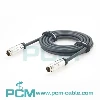
Configuring a Cisco switch using a console cable is a common method for initial setup and configuration. The console cable connects your computer's serial port (or USB port with a USB-to-serial adapter) to the switch's console port, allowing you to access the switch's command-line interface (CLI) for configuration. Here's a step-by-step guide to help you configure a Cisco switch using a console cable:
Step 1: Gather the necessary equipment:
Cisco switch
Console cable (usually provided with the switch) or a USB-to-serial adapter if your computer doesn't have a serial port
Computer with a serial port or USB port
Terminal emulation software (such as PuTTY, TeraTerm, or SecureCRT)
Step 2: Connect the console cable:
Connect one end of the console cable to the console port on the Cisco switch.
Connect the other end of the console cable to the serial port on your computer or the USB port with the USB-to-serial adapter.
Step 3: Launch the terminal emulation software:
Open the terminal emulation software on your computer.
Step 4: Configure the terminal emulation software:
Create a new session or open an existing one.
Select the appropriate connection type, typically "Serial" or "Serial Port."
Choose the correct serial port or USB-to-serial adapter.
Set the baud rate to 9600 (this is the default baud rate for most Cisco devices).
Configure other settings as needed (such as flow control, data bits, stop bits, etc.); the default settings should work in most cases.
Step 5: Power on the Cisco switch:
Connect the power cable to the switch and plug it into a power source.
Wait for the switch to complete its boot-up process.
Step 6: Access the switch's CLI:
In the terminal emulation software, press the "Enter" key a few times to wake up the switch (if needed).
You should see the switch's command prompt or a login prompt, depending on the switch model and configuration.
Step 7: Enter privileged EXEC mode:
Type "enable" and press "Enter" to enter privileged EXEC mode.
If prompted for a password, enter the password (if configured) and press "Enter."
Step 8: Enter global configuration mode:
Type "configure terminal" or "conf t" and press "Enter" to enter global configuration mode.
Step 9: Configure the switch:
Use various commands to configure the switch, such as:
Setting a hostname: "hostname [hostname]"
Configuring IP address and subnet mask for a VLAN interface:
Configuring default gateway: "ip default-gateway [gateway_ip]"
Configuring VLANs: "vlan [vlan_number]"
Assigning switch ports to VLANs: "interface [interface_name]"
Setting port mode: "switchport mode [access/trunk]"
Assigning VLAN to a port: "switchport access vlan [vlan_number]"
Saving the configuration: "write memory" or "copy running-config startup-config"
Step 10: Verify and save the configuration:
Use appropriate show commands (e.g., "show running-config," "show interfaces," etc.) to verify your configuration.
If everything is working as expected, save the configuration using the "write memory" or "copy running-config startup-config" command.
That's a basic guide to configuring a Cisco switch using a console cable. Keep in mind that the exact commands and procedures may vary depending on the switch model and software version. It's always a good idea to consult the Cisco documentation or seek additional resources for specific switch models and advanced configurations.