

1, Understand USB to serial cables
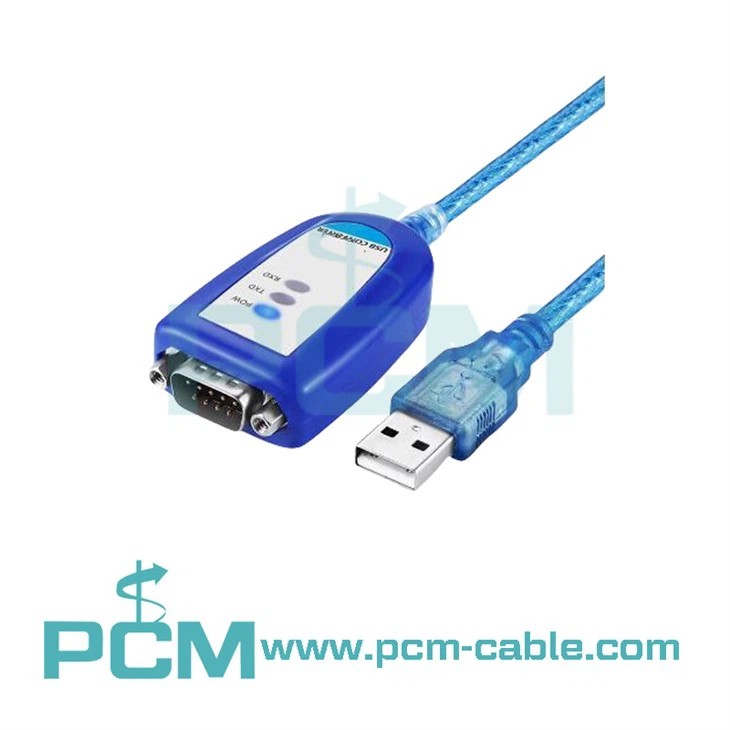
USB to serial cable is an adapter that can convert a computer's USB interface into a serial port. It typically includes a USB plug and a serial port (such as DB-9 or DB-25), allowing users to connect devices that support serial communication through a USB interface. This type of cable is widely used in industrial automation, communication, testing and measurement fields, and is an important tool for connecting old equipment or transmitting specific communication protocols.
2, Connect USB to serial cable
1. Preparation work
Ensure that your computer has a usable USB interface.
Check if the USB to serial cable is intact and if the interface is not corroded or damaged.
Prepare the serial devices that need to be connected and ensure that their power is turned on (if applicable).
2. Connect the cable
Insert the USB plug of the USB to serial cable into the USB port of the computer.
Insert the cable of the serial device into the serial port of the USB to serial cable. Pay attention to the alignment and fastening of interfaces to avoid communication failure caused by loose interfaces.
3, Install driver program
Most modern operating systems (such as Windows 10, macOS, etc.) come with basic support for USB to serial cables, but to ensure optimal performance and compatibility, it is recommended to install the drivers provided by the manufacturer.
1. Search for driver programs
Visit the official website of the USB to serial cable manufacturer.
Find the driver that matches your cable model and operating system version on the support or download page.
2. Install the driver program
Download the driver program and follow the instructions of the installation wizard to install it.
During the installation process, it may be necessary to restart the computer to complete the installation.
4, Configure serial port
After installing the driver, you need to configure a serial port on your computer to communicate with the connected serial devices.
1. Open the Device Manager
In the Windows operating system, you can open Device Manager by right clicking on "This Computer" or "My Computer", selecting "Manage", and then choosing "Device Manager" from the left menu.
2. Find the serial port
In Device Manager, expand "Ports (COM&LPT)" or similar categories.
You should be able to see one or more devices with "USB Serial Port" or similar names. This is the serial port represented by your USB to serial cable.
3. Configure port parameters
Right click on the serial port device and select "Properties".
In the "Port Settings" or similar tabs, you can configure parameters such as baud rate, data bits, stop bits, and parity for the port. These parameters should match your serial device.
5, Use serial port
After configuring the serial port, you can use it to communicate with the connected serial devices. This typically involves using specific software or applications to send and receive data.
6, Common problem solutions
The device cannot recognize:
Check if the USB to serial cable and serial device are connected correctly.
Try plugging the cable into another USB port on the computer.
Ensure that the correct driver has been installed.
Communication failure:
Check if the configuration parameters of the serial port match the serial device.
Check if there are other applications using the same serial port.
Try restarting the computer and serial devices.
Driver issue:
Uninstall and reinstall the driver program.
Visit the manufacturer's website to check for updated drivers.
Oct 14, 2024
Leave a message
How to use USB to serial cable?
Send Inquiry


