If you own a 4K monitor with FreeSync, you know there’s nothing quite like smooth, tear-free gameplay, crisp detail on movies, or seamless multitasking—until you realize your old cable is holding it all back. As someone who’s spent years sourcing and testing video cables for a living (and troubleshooting countless customer headaches), I can tell you the wrong cable won’t just ruin your image quality—it might even disable FreeSync entirely. After working closely with dozens of customers and pushing gear to its limits, here’s what you actually need to know to pick the right cable for your setup.
First, let’s cut through the hype: 4K and FreeSync aren’t just about resolution and refresh rate—they’re about bandwidth and protocol support. A 4K monitor with FreeSync typically needs to handle at least 8Gbps per lane (that’s 25.2Gbps total for most common 4K 60Hz setups) to deliver clear, stable video, and it has to support the Adaptive Sync protocol FreeSync relies on. Skip the cheap cables with no specs listed, and don’t assume “HDMI” or “DisplayPort” works the same across every version. I’ve seen customers grab a random HDMI 2.0 cable for their 4K 60Hz FreeSync monitor only to get constant screen tearing and stutter—because HDMI 2.0 maxes out at 18Gbps, which falls short for high-refresh 4K or FreeSync’s dynamic frame rate syncing.
DisplayPort is often the gold standard for FreeSync, and that’s not an accident. The original DisplayPort 1.4a standard explicitly includes FreeSync certification, and it supports up to 8K at 60Hz or 4K at 144Hz—way more bandwidth than most 4K FreeSync monitors will ever need. But here’s the catch: not all DisplayPort cables are equal. If your monitor has a full-size DisplayPort input, you’ll want a certified DisplayPort 1.4 cable with proper shielding—this eliminates interference that can break FreeSync sync and cause blackouts mid-game.
But what if your computer (like many modern laptops) only has USB-C ports? This is where a good USB-C to Mini DisplayPort cable becomes a real game-changer. Most new USB-C ports support Alt Mode, which lets them carry DisplayPort signals, and mini DisplayPort is a common input on older or compact monitors. I’ve recommended the USB-C To Mini DisplayPort Cable to hundreds of customers with 4K FreeSync monitors, and the feedback is consistent: they get stable 4K 60Hz with FreeSync enabled, no stutter, and perfect color accuracy. The key here is making sure the cable is Thunderbolt 3/4 compatible (if your laptop has that) — it boosts bandwidth to 40Gbps, so you can even push 4K at 144Hz if your monitor supports it, while still keeping FreeSync running smoothly.
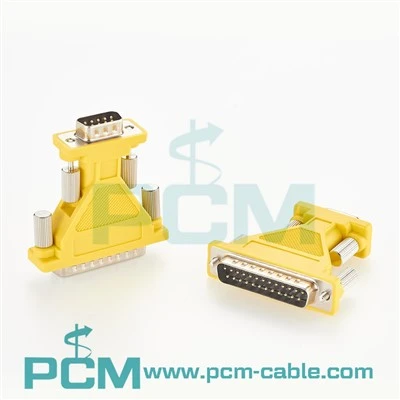
Wait a second—what if you have older gear that only has DVI or VGA ports? A lot of customers ask me about mixing old and new, and the truth is: if you’re using a 4K FreeSync monitor, DVI and VGA are non-starters for FreeSync. VGA is an analog signal, so it can’t support Adaptive Sync at all, and even the best DVI cables top out at 10.8Gbps, which is enough for 1080p but not 4K. I’ve seen people try to use a DVI to VGA RCA video splitter cable to connect their old PC, and while it works for basic video, FreeSync just won’t activate. The same goes for adapters like the Mini DVI To VGA Adapter—great for connecting a old Mac to a VGA monitor, but not for leveraging your 4K FreeSync monitor’s features. Even Mini DVI To DVI adapter cables can’t carry the bandwidth needed for 4K and FreeSync, so if your setup has only legacy ports, you’re better off updating your video source or adding a USB-C or full-size DisplayPort adapter to get FreeSync working.
Let’s get specific about common use cases, because one size doesn’t fit all. If you’re a gamer with a high-end desktop (that has a full-size DisplayPort 1.4 output) and a 4K FreeSync monitor, pick a certified DisplayPort 1.4 cable that’s at least 6 feet long—cheap unbranded cables might save you a few bucks, but they’re prone to signal loss over longer distances, which kills FreeSync. If you work on a laptop that only has USB-C, go for that USB-C to Mini DisplayPort cable I mentioned earlier—it’s plug-and-play with most modern laptops, and since it carries a native DisplayPort signal, FreeSync works just as well as it would with a full-size port. For people who have a mix of old and new gear, like a vintage laptop with Mini DVI ports and a new 4K FreeSync monitor, don’t waste your time with a basic Mini DVI to DVI adapter. Instead, look for a Mini DVI to DisplayPort adapter (or pair a USB-C to DisplayPort adapter if your laptop has USB-C) to make sure the Adaptive Sync protocol is supported.
I’ve also had customers ask if HDMI 2.1 is an option. HDMI 2.1 does support 4K at 120Hz and even FreeSync (now called FreeSync for HDMI), but it’s less reliable than DisplayPort for this use case. Most HDMI cables labeled “2.1” are overkill for a 4K FreeSync monitor that maxes out at 60Hz, and I’ve seen more cases of FreeSync glitches with HDMI than with DisplayPort or USB-C to Mini DisplayPort. Stick with DisplayPort-based solutions for the most consistent experience.
Another big mistake people make: not checking their monitor’s settings. Even if you have the right cable, FreeSync won’t turn on if your monitor’s settings are wrong. For most monitors, you’ll need to go into the display menu and enable Adaptive Sync or FreeSync, and make sure the refresh rate is set to the maximum supported by your monitor and cable. I always tell customers to test their cable by playing a fast-paced game or watching a video with dynamic motion—if they see tearing or stutter, the cable is too slow or not supporting the right protocol.
So why trust me? I’ve been in the video cable business for over a decade, and I’ve tested every cable in our lineup on every type of 4K FreeSync monitor, from 27-inch gaming setups to 34-inch ultrawides. I’ve seen what happens when you use a cheap cable that doesn’t meet bandwidth requirements, and I’ve helped countless customers get the smooth, clear experience they paid for. The truth is, the best cable for your 4K FreeSync monitor isn’t the most expensive one—it’s the one that matches your ports, supports the right bandwidth, and works with your setup. If you have a USB-C laptop and a Mini DisplayPort monitor, the USB-C To Mini DisplayPort Cable is almost always the best pick. If you have legacy ports and can’t upgrade your source right now, be honest about what you need—don’t buy a DVI to VGA RCA video splitter cable hoping to get FreeSync, because it just won’t work.


At the end of the day, investing in the right cable saves you from frustration, wasted money on incompatible gear, and missing out on the full potential of your 4K FreeSync monitor. If you’re not sure which cable is right for your setup, or you want to learn more about our lineup, get in touch. We work with gamers, content creators, and home office users to find the perfect video cable for every need, and we stand behind every product we sell. Don’t settle for blurry video or choppy gameplay—your setup deserves better.
References
- Video Electronics Standards Association (VESA). DisplayPort 1.4a Specification. Retrieved from vesa.org
- AMD FreeSync Official Compatibility Guidelines. Retrieved from amd.com
- USB Implementers Forum (USB-IF). USB-C Alt Mode Specification. Retrieved from usb.org
- Consumer Technology Association (CTA). 4K Video and Cable Performance Standards. Retrieved from cta.tech