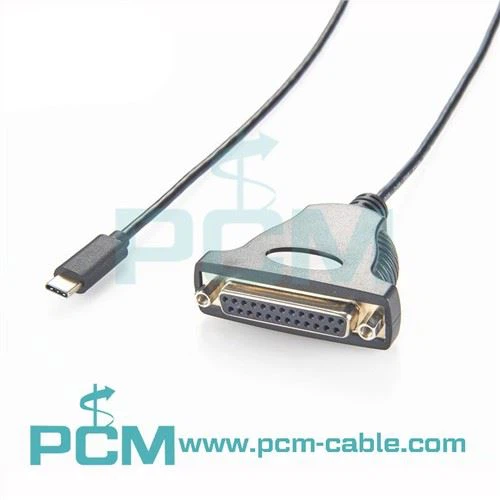
Hey there! As a serial cable supplier, I often get asked about how to install drivers for a device connected via a serial cable. It can be a bit of a headache, especially if you're not tech - savvy. But don't worry, I'm here to break it down for you in a simple way.
First off, let's understand what serial cables are and why drivers are important. Serial cables are used to transfer data between devices. They've been around for ages and are still widely used in many industries, like manufacturing, telecommunications, and even some older computer systems. Drivers, on the other hand, are like translators. They help your operating system communicate with the device connected through the serial cable. Without the right drivers, your device might not work properly, or it might not work at all.
Step 1: Identify Your Device
The very first thing you need to do is figure out what device you're trying to connect. Is it a printer, a modem, a barcode scanner, or something else? Each device has its own set of requirements, and you'll need to find the appropriate drivers for it. For example, if you're using a USB To DB37 PCIe Card Cable, the device connected to it could be a specialized industrial control unit. You'll need to check the device's manual or the manufacturer's website to get the exact model number. This number is crucial because it'll help you find the right drivers.
Step 2: Check Your Operating System
Your operating system plays a big role in driver installation. Whether you're using Windows, macOS, or Linux, each has its own way of handling drivers. Windows is usually the most straightforward. It often has a built - in driver database, and it might automatically detect and install the drivers for your device when you connect it. But sometimes, it might not have the latest or the most specific drivers. In that case, you'll need to go to the device manufacturer's website and download the drivers manually.
macOS is also pretty good at handling drivers, especially for common devices. However, if you're using a more specialized device, you might have to do some extra work. Linux can be a bit more challenging, as different distributions have different ways of managing drivers. You might need to use the package manager or compile the drivers from source code.
Step 3: Download the Drivers
Once you've identified your device and your operating system, it's time to download the drivers. Head over to the manufacturer's website. Most companies have a support section where you can search for drivers by device model number. Make sure you download the drivers that are compatible with your operating system. For instance, if you're using Windows 10, don't download drivers meant for Windows 7.
If you can't find the drivers on the manufacturer's website, you can try third - party driver update tools. But be careful with these, as some of them might contain malware or give you incorrect drivers. It's always best to get the drivers directly from the source.
Step 4: Install the Drivers
Now that you've downloaded the drivers, it's time to install them. In Windows, you can usually just double - click on the downloaded file and follow the installation wizard. It'll guide you through the process, which might include accepting the license agreement, choosing the installation location, and restarting your computer.
For macOS, you might need to mount a disk image and then run the installation program. Linux users will have to follow the specific instructions for their distribution. Some drivers might require you to run commands in the terminal, so make sure you read the installation instructions carefully.


Step 5: Test the Device
After installing the drivers, it's important to test the device to make sure it's working properly. Try using the device as you normally would. If it's a printer, print a test page. If it's a scanner, scan a document. If the device doesn't work, there could be a few reasons. Maybe you downloaded the wrong drivers, or there could be a hardware issue. You might need to go back and double - check your steps.
Troubleshooting Tips
If you run into problems during the driver installation process, here are some tips to help you out:
- Check the cable connection: Make sure the serial cable is properly connected to both the device and your computer. A loose connection can cause all sorts of issues. For example, if you're using an RS - 232 Data Cable RJ45 To DB9 Pin, ensure that the pins are firmly inserted.
- Disable antivirus software temporarily: Sometimes, your antivirus software can block the driver installation. Temporarily disable it (but remember to turn it back on after the installation is done) and try installing the drivers again.
- Uninstall and reinstall the drivers: If the device still isn't working, try uninstalling the drivers and then reinstalling them. This can sometimes fix issues caused by a partial or incorrect installation.
Using Our Serial Cables
At our company, we offer a wide range of high - quality serial cables, such as the USB To DB44 Serial PCIe Card Octopus Cable. These cables are designed to provide a reliable connection for your devices. When you purchase our cables, we also offer support to help you with driver installation. If you have any questions or need further assistance, don't hesitate to reach out.
Additional Considerations
- Driver Updates: Drivers can get outdated over time. It's a good idea to check for driver updates regularly, especially if you're experiencing performance issues with your device. You can usually do this on the manufacturer's website.
- Compatibility with Other Devices: Sometimes, a device might not work properly because of compatibility issues with other devices connected to your computer. Make sure you check the system requirements and the compatibility matrix of all the devices you're using.
Conclusion
Installing drivers for a device connected via a serial cable might seem complicated at first, but if you follow these steps, you should be able to get it done without too much trouble. Remember to identify your device, check your operating system, download the right drivers, install them correctly, and test the device. And if you need high - quality serial cables for your projects, we're here to help.
If you're interested in purchasing our serial cables or have any questions about driver installation, feel free to get in touch. We're always happy to assist you with your serial cable needs and ensure that your devices work seamlessly.
References
- Microsoft Support: Information on Windows driver installation
- Apple Support: Guide to macOS driver management
- Linux Documentation Project: Resources for Linux driver installation