Connecting a laptop to a smart TV using a video cable can significantly enhance your viewing and entertainment experience. It allows you to enjoy content from your laptop on a larger screen, whether it's streaming movies, playing games, or presenting work. As a trusted video cables supplier, I'm here to guide you through the process and provide valuable insights into the different types of cables and adapters available.
Understanding the Basics
Before you start connecting your laptop to your smart TV, it's essential to understand the different types of video cables and ports available. The most common video ports on laptops include HDMI, VGA, DVI, and DisplayPort, while smart TVs typically support HDMI, VGA, and sometimes DVI. Here's a brief overview of each type of port:
- HDMI (High-Definition Multimedia Interface): This is the most popular video cable used today, as it supports high-definition video and audio transmission. It's widely available on both laptops and smart TVs, making it a convenient choice for most users.
- VGA (Video Graphics Array): This is an older video cable that was commonly used before the advent of HDMI. It supports standard-definition video but does not transmit audio. VGA ports are still found on many laptops and older smart TVs.
- DVI (Digital Visual Interface): This is a digital video cable that supports high-definition video but does not transmit audio. DVI ports are less common on laptops but are still found on some older models and some smart TVs.
- DisplayPort: This is a newer video cable that supports high-definition video and audio transmission. It's becoming increasingly popular on laptops and is also found on some smart TVs.
Choosing the Right Cable or Adapter
Once you've identified the video ports on your laptop and smart TV, you can choose the right cable or adapter to connect them. Here are some common scenarios and the recommended cables or adapters:
- Laptop with HDMI port and smart TV with HDMI port: In this case, you can simply use an HDMI cable to connect your laptop to your smart TV. HDMI cables are available in different lengths and qualities, so choose one that suits your needs.
- Laptop with VGA port and smart TV with HDMI port: If your laptop has a VGA port and your smart TV has an HDMI port, you'll need a VGA to HDMI adapter. This adapter converts the VGA signal from your laptop into an HDMI signal that can be transmitted to your smart TV. You can find VGA to HDMI adapters at most electronics stores or online retailers.
- Laptop with DVI port and smart TV with HDMI port: If your laptop has a DVI port and your smart TV has an HDMI port, you'll need a DVI to HDMI adapter. This adapter converts the DVI signal from your laptop into an HDMI signal that can be transmitted to your smart TV. You can find DVI to HDMI adapters at most electronics stores or online retailers.
- Laptop with DisplayPort and smart TV with HDMI port: If your laptop has a DisplayPort and your smart TV has an HDMI port, you'll need a DisplayPort to HDMI adapter. This adapter converts the DisplayPort signal from your laptop into an HDMI signal that can be transmitted to your smart TV. You can find DisplayPort to HDMI adapters at most electronics stores or online retailers.
Connecting Your Laptop to Your Smart TV
Once you've chosen the right cable or adapter, you can connect your laptop to your smart TV. Here's a step-by-step guide:
- Turn off your laptop and smart TV: Before you start connecting the cables, make sure both your laptop and smart TV are turned off. This will prevent any damage to the devices.
- Connect the cable or adapter: Connect one end of the cable or adapter to the video port on your laptop and the other end to the corresponding video port on your smart TV. Make sure the connections are secure.
- Turn on your smart TV: Turn on your smart TV and select the appropriate input source. This is usually done using the remote control. Look for the input source that corresponds to the video port you connected the cable or adapter to.
- Turn on your laptop: Turn on your laptop and wait for it to boot up. Once your laptop has booted up, it should automatically detect the external display. If it doesn't, you may need to manually configure the display settings on your laptop.
- Configure the display settings: On your laptop, go to the display settings and select the option to extend or duplicate your desktop. Extending your desktop will allow you to use your smart TV as an additional monitor, while duplicating your desktop will display the same content on both your laptop screen and your smart TV. You can also adjust the resolution and other display settings to optimize the viewing experience.
Troubleshooting Common Issues
If you encounter any issues while connecting your laptop to your smart TV, here are some common troubleshooting tips:
- No signal: If you don't see any image on your smart TV, make sure the cables are properly connected and the input source on your smart TV is set to the correct port. You may also need to adjust the display settings on your laptop.
- Poor image quality: If the image on your smart TV looks blurry or distorted, make sure the resolution on your laptop is set to the same as the native resolution of your smart TV. You may also need to adjust the sharpness and other image settings on your smart TV.
- No audio: If you don't hear any audio on your smart TV, make sure the audio settings on your laptop are set to output audio through the external display. You may also need to adjust the volume settings on your smart TV.
Exploring Other Options
In addition to using a video cable, there are other ways to connect your laptop to your smart TV. Here are some alternative options:
- Wireless connection: Many smart TVs support wireless connectivity, such as Wi-Fi or Bluetooth. You can use a wireless display adapter, such as a Chromecast or an Apple TV, to connect your laptop to your smart TV wirelessly. This allows you to stream content from your laptop to your smart TV without the need for any cables.
- Screen mirroring: Some laptops and smart TVs support screen mirroring, which allows you to wirelessly mirror the content on your laptop screen to your smart TV. This is usually done using a built-in feature on your laptop or a third-party app.
Conclusion
Connecting a laptop to a smart TV using a video cable is a simple and effective way to enhance your viewing and entertainment experience. By understanding the different types of video cables and ports available and choosing the right cable or adapter, you can easily connect your laptop to your smart TV and enjoy your favorite content on a larger screen. As a video cables supplier, we offer a wide range of high-quality cables and adapters to meet your needs. If you have any questions or need help choosing the right cable or adapter, please don't hesitate to contact us. We're here to assist you with all your video cable needs.
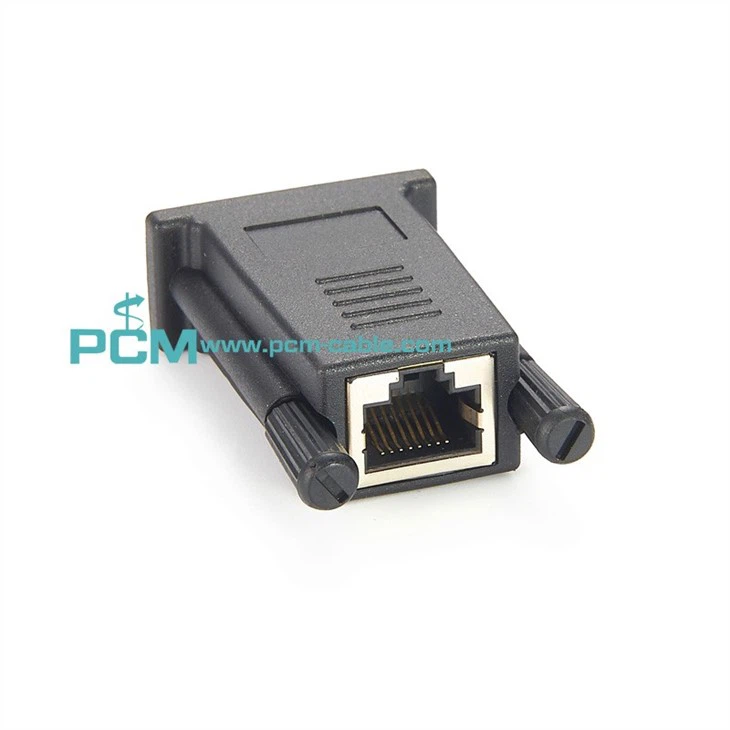
If you're interested in purchasing video cables or adapters, such as the Mini DVI To VGA Adapter, VGA To Ethernet Converter, or DVI Male To Female Digital Flat Panel PortSaver Cable, please reach out to us for more information and to discuss your specific requirements. We look forward to the opportunity to work with you and provide you with the best video cable solutions.

References
- "HDMI vs. VGA vs. DVI vs. DisplayPort: What's the Difference?" by Lifewire.
- "How to Connect a Laptop to a TV" by PCMag.
- "Troubleshooting Display Issues on Windows 10" by Microsoft.