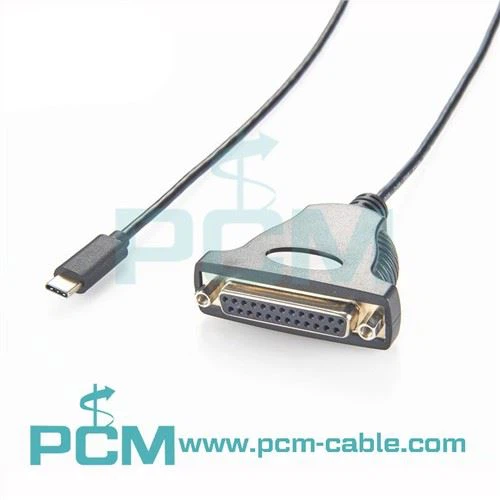
As a seasoned supplier of Serial Adapters, I've witnessed firsthand the challenges that users often face when it comes to installing the necessary drivers for these devices. In this blog post, I'll guide you through the process of installing a Serial Adapter driver, ensuring that you can get your adapter up and running smoothly.
Understanding Serial Adapters
Before we dive into the installation process, let's take a moment to understand what Serial Adapters are and why they're important. Serial Adapters are devices that allow you to connect serial devices, such as modems, barcode scanners, and industrial equipment, to a computer via a USB port. They convert the serial data from the device into a format that the computer can understand, enabling seamless communication between the two.


Our company offers a wide range of Serial Adapters to meet the diverse needs of our customers. Some of our popular products include the USB To Serial RS - 232 DB9 FTDI Adapter, the USB 2.0 To RS232 Adapter Converter, and the USB To RS485 TTL Converter. Each of these adapters is designed to provide reliable and efficient serial communication, making them ideal for various applications.
Prerequisites for Driver Installation
Before you start installing the Serial Adapter driver, there are a few things you need to do to ensure a successful installation:
- Check Compatibility: Make sure that your Serial Adapter is compatible with your operating system. Most modern Serial Adapters support Windows, macOS, and Linux, but it's always a good idea to double - check the product specifications.
- Gather Necessary Information: Locate the driver installation files. These files can usually be found on the manufacturer's website. You'll need to know the model number of your Serial Adapter to download the correct driver.
- Backup Your Data: Although driver installation is generally a safe process, it's always a good practice to back up your important data in case something goes wrong.
Step - by - Step Guide to Installing a Serial Adapter Driver
Windows
- Connect the Serial Adapter: Plug your Serial Adapter into an available USB port on your computer. Windows will automatically detect the new device and may attempt to install the driver.
- Download the Driver: If Windows cannot find the appropriate driver, visit the manufacturer's website and download the driver for your specific Serial Adapter model. Make sure to download the driver that is compatible with your version of Windows (e.g., Windows 10, Windows 11).
- Locate the Downloaded File: Once the download is complete, locate the downloaded driver file. It is usually in a compressed format, such as a.zip file.
- Extract the Files: Right - click on the compressed file and select "Extract All". Follow the on - screen instructions to extract the files to a location on your computer.
- Install the Driver: Navigate to the extracted folder and double - click on the setup file (usually named something like "setup.exe"). Follow the installation wizard's instructions, which may include accepting the license agreement and choosing the installation location.
- Verify the Installation: After the installation is complete, open the "Device Manager" by right - clicking on the Start button and selecting "Device Manager". Expand the "Ports (COM & LPT)" section. You should see your Serial Adapter listed, indicating that the driver has been installed successfully.
macOS
- Connect the Serial Adapter: Plug the Serial Adapter into a USB port on your Mac.
- Download the Driver: Visit the manufacturer's website and download the macOS - compatible driver for your Serial Adapter.
- Open the Downloaded File: Double - click on the downloaded file to open it. This may be a disk image file with a.dmg extension.
- Install the Driver: Follow the on - screen instructions in the installer window. You may need to enter your administrator password to complete the installation.
- Verify the Installation: Open "System Information" by clicking on the Apple menu and selecting "About This Mac", then clicking "System Report". Under "Hardware", select "USB". You should see your Serial Adapter listed if the driver has been installed correctly.
Linux
- Connect the Serial Adapter: Plug the Serial Adapter into a USB port on your Linux machine.
- Check for Compatibility: Most modern Linux distributions have built - in support for many Serial Adapters. However, you may need to install additional drivers for some models.
- Update the Package List: Open a terminal and run the following command to update the package list:
sudo apt update
- Install the Driver (if necessary): If your Serial Adapter requires additional drivers, you may need to download them from the manufacturer's website. Extract the files and follow the provided installation instructions, which may involve running commands in the terminal.
- Verify the Installation: You can use commands like
dmesgto check if the system has recognized the Serial Adapter. Look for messages related to the USB device and serial port detection.
Troubleshooting Common Driver Installation Issues
Even with the best - laid plans, you may encounter some issues during the driver installation process. Here are some common problems and their solutions:
- Driver Not Found: If Windows or macOS cannot find the driver automatically, make sure you have downloaded the correct driver from the manufacturer's website. Check the model number of your Serial Adapter and the compatibility with your operating system.
- Installation Errors: If you encounter errors during the installation process, try running the setup file as an administrator (on Windows) or entering your administrator password (on macOS). You can also try restarting your computer and attempting the installation again.
- Device Not Recognized: If your Serial Adapter is not recognized after the driver installation, check the USB connection. Try plugging the adapter into a different USB port or using a different USB cable.
Conclusion
Installing a Serial Adapter driver may seem daunting at first, but by following the steps outlined in this blog post, you can ensure a smooth and successful installation. Our company is committed to providing high - quality Serial Adapters and excellent customer support. If you have any questions or need further assistance with driver installation or any other aspect of our products, we encourage you to reach out to us for a purchase negotiation. We look forward to helping you meet your serial communication needs.
References
- Manufacturer's documentation for Serial Adapters
- Operating system documentation for driver installation procedures