As a supplier of video cables, I often receive inquiries from customers about how to check the compatibility of a video cable with their devices. This is a crucial issue because using an incompatible cable can lead to poor video quality, no signal transmission, or even damage to the device. In this blog post, I'll share some practical methods to help you determine whether a video cable is suitable for your device.
Understanding Your Device's Video Output Ports
The first step in checking cable compatibility is to identify the video output ports on your device. Different devices come with various types of video output ports, such as HDMI, VGA, DisplayPort, and USB - C. For example, modern laptops and smartphones often have USB - C ports, which can support video output in addition to data transfer and charging. Desktop computers may have HDMI, VGA, or DisplayPort connections.
To find out what ports your device has, you can refer to the device's user manual. If you don't have the manual, you can also look at the back or side of the device to visually identify the ports. Make a note of the type and number of ports available.
Identifying the Video Input Ports of the Display
Once you know the output ports of your device, you need to determine the input ports of the display you want to connect to. Displays like monitors, TVs, and projectors also have different types of input ports. For instance, older monitors may only have VGA ports, while newer ones may support HDMI, DisplayPort, or even USB - C.
Similar to checking the device's output ports, you can refer to the display's user manual or visually inspect the ports on the back of the display. This information will help you select the appropriate cable for the connection.
Matching Cable Types to Ports
After identifying the output and input ports, you need to choose a cable that matches these ports. Here are some common cable types and their compatibility:
HDMI Cables
HDMI (High - Definition Multimedia Interface) cables are widely used for transmitting high - definition video and audio signals. They are suitable for devices with HDMI output ports, such as modern laptops, gaming consoles, and smart TVs. If your device has an HDMI output and your display has an HDMI input, an HDMI cable is the ideal choice.
VGA Cables
VGA (Video Graphics Array) cables are an older type of video cable. They are commonly used for connecting older computers to monitors. If your device has a VGA output and your monitor has a VGA input, a VGA cable will work. You can find a VGA Monitor Cable with 3.5mm Audio that not only transmits video but also audio signals.
DisplayPort Cables
DisplayPort cables are used for high - resolution video transmission. They are often found on high - end monitors and graphics cards. If your device has a DisplayPort output and your monitor has a DisplayPort input, a DisplayPort cable is the right option.
USB - C Cables
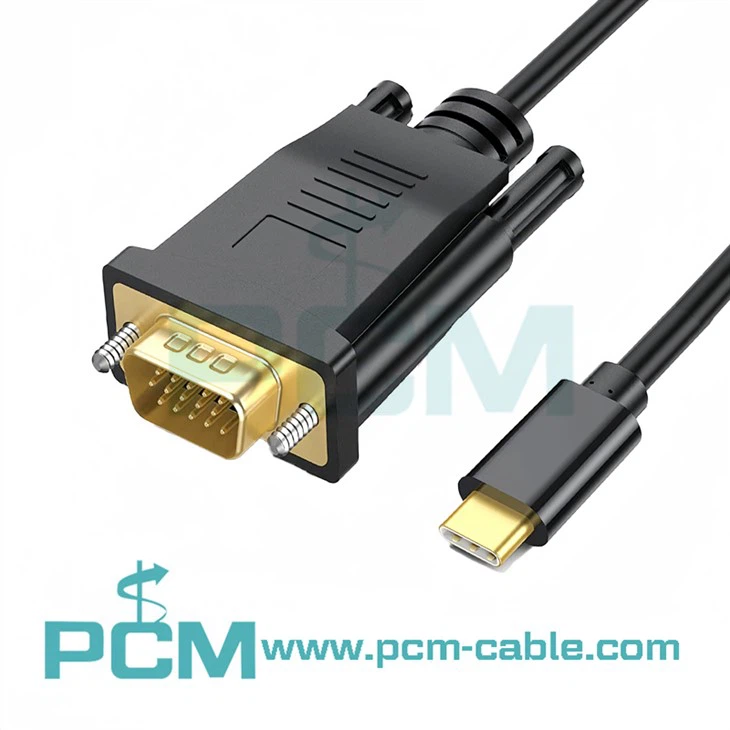
USB - C cables are becoming increasingly popular due to their versatility. They can be used for data transfer, charging, and video output. If your device has a USB - C port that supports video output, you can use a USB - C To VGA Cable to connect it to a VGA - enabled display.
Checking for Adapters and Splitters
In some cases, your device's output port may not match the input port of your display. In such situations, you can use adapters or splitters. For example, if your device has an HDMI output and your monitor has only a VGA input, you can use an HDMI to VGA adapter.
We also offer splitters like the VGA Male To Dual VGA Female Splitter Cable, which allows you to connect one VGA - output device to two VGA - input monitors simultaneously.
Testing the Connection
Before making a purchase, it's a good idea to test the cable connection if possible. If you're buying from a physical store, you can ask the salesperson to help you connect the cable to your device and the display to see if it works properly.
If you're purchasing online, make sure to check the seller's return policy in case the cable is incompatible. Once you receive the cable, carefully connect it to your device and the display. Power on both the device and the display and check if the video signal is being transmitted correctly.
Other Considerations
- Resolution and Refresh Rate: Make sure the cable can support the resolution and refresh rate of your device and display. For example, if you have a 4K monitor with a 60Hz refresh rate, you need a cable that can handle these specifications.
- Length of the Cable: Longer cables may cause signal degradation, especially for high - resolution video. Choose a cable length that is appropriate for your setup.
Conclusion
Checking the compatibility of a video cable with your device is a multi - step process that involves understanding your device's output ports, the display's input ports, and choosing the right cable or adapter. By following the steps outlined in this blog post, you can ensure a smooth and high - quality video connection.


If you're in the market for video cables and need assistance in choosing the right ones for your devices, feel free to contact us for more information and to discuss your procurement needs. We are committed to providing high - quality video cables that meet your requirements.
References
- Various device user manuals.
- Industry standards for video cable specifications.